
AMD Test Drive Build
I wanted to dedicate a page to how I did the actual build. First off I wanted to picture the Fractal Design Arc Midi R2 case with the side panels off and ready to start building in.
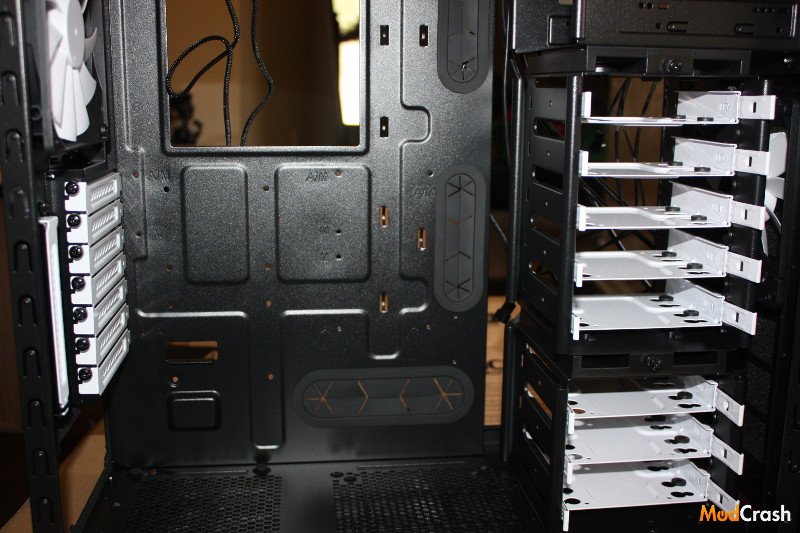
AMD Test Drive Build
In the next picture I have the I/O shield installed as well as the motherboard mounting screws. I got the an ASRock mini-ATX board but this case will accept up to a regular ATX motherboard.
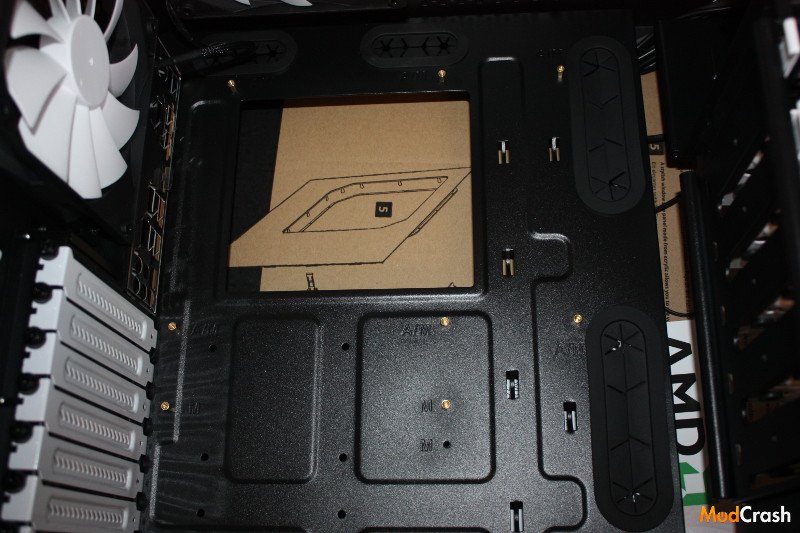
AMD Test Drive Build
Motherboard is installed and I connected the front panel already. This motherboard did support USB 3.0 but since I had some thing to install first I went ahead and connected the front USB to the 2.0 ports so I wouldn’t have to worry about installing drivers to use them until I got everything installed then I switched it to USB 3.0.
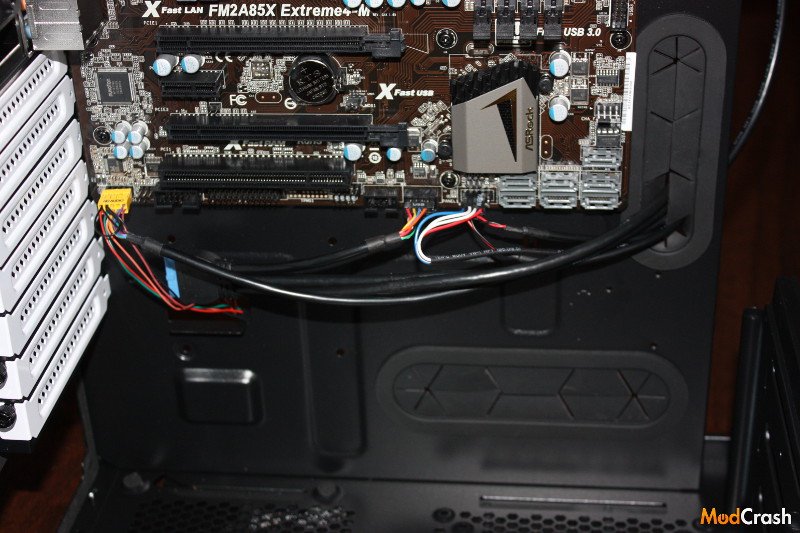
AMD Test Drive Build
Next up is the read of the case. I wanted to show what the I/O shield looked like along with the power supply installed.
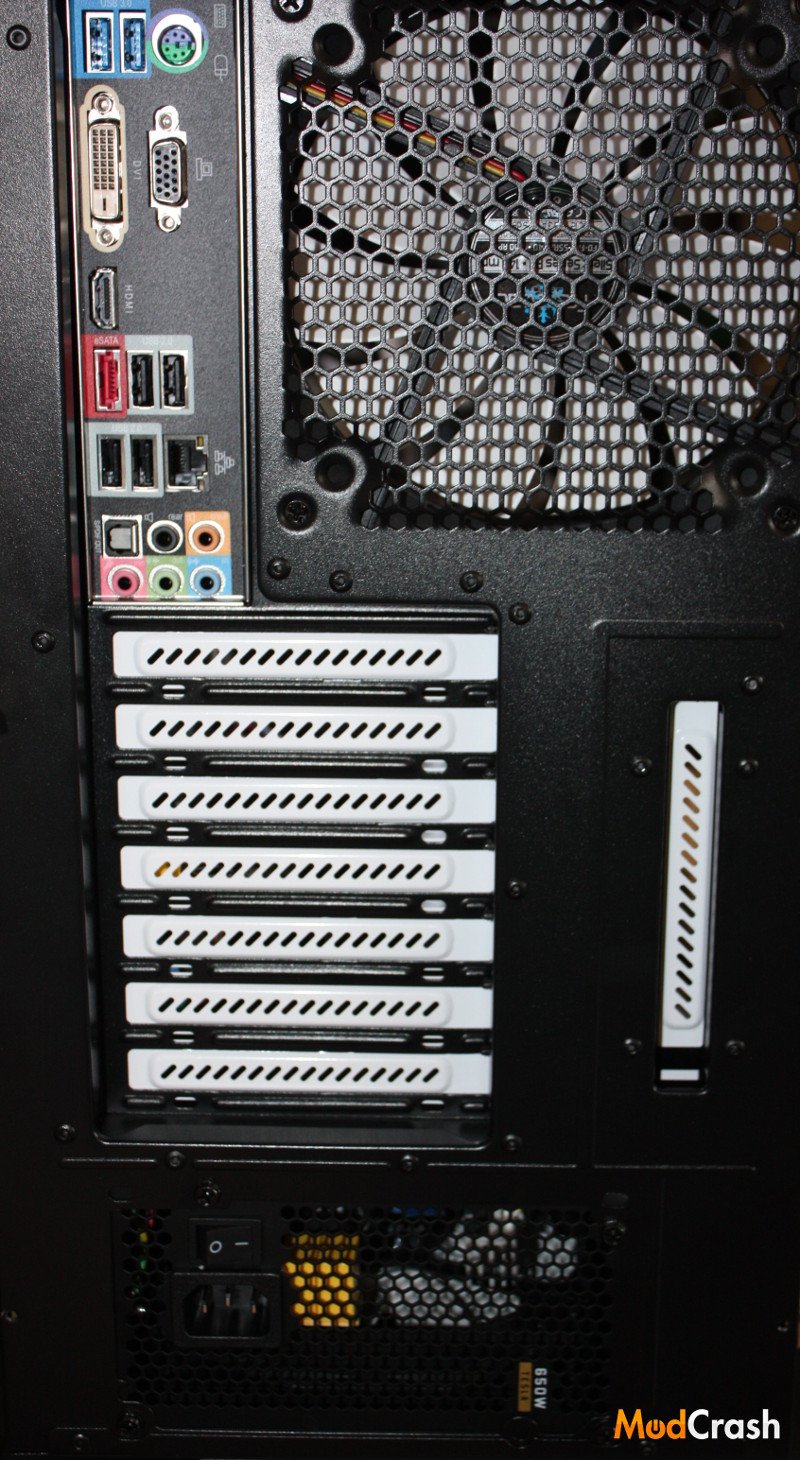
AMD Test Drive Build
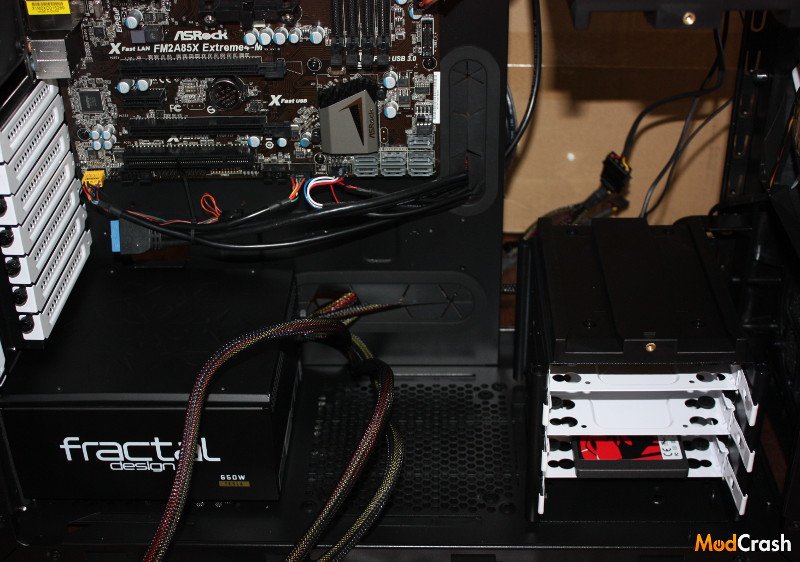
Since I have most of the major components installed I was starting to organize my cable management. The PSU supplied to us was the Fractal Design Tesla R2 650W but it wasn’t modular so I went cable by cable to make sure I kept good cable management and as much as I could behind the motherboard.
AMD Test Drive Build
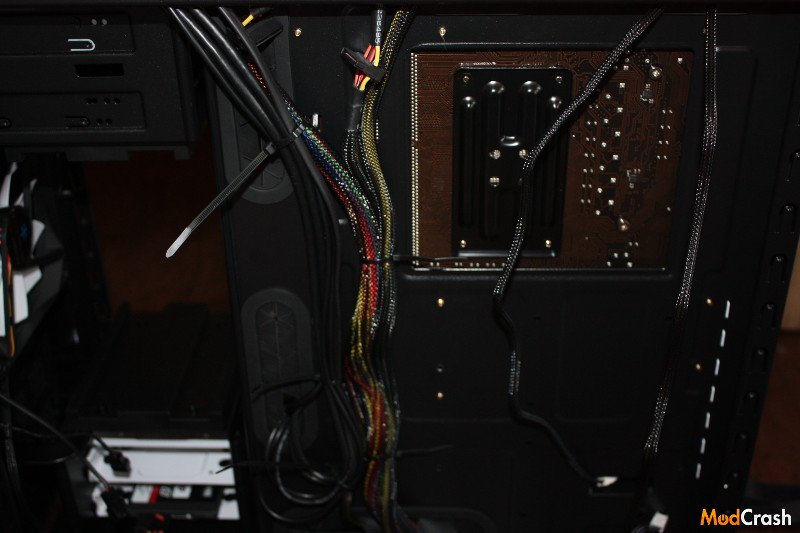
This is me starting to zip tie down cables in the back. The Arc Midi Case has many tie down spots and lots of places to actual route your cables.
AMD Test Drive Build
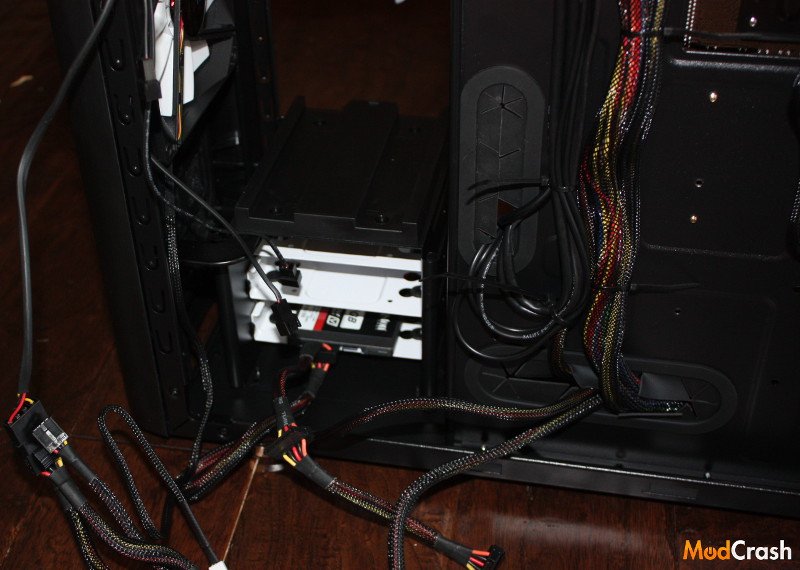
Later stages of cable management. For the most part I had gotten all the front panale and PSU cables done, now it was to get those extra cables under control.
AMD Test Drive Build
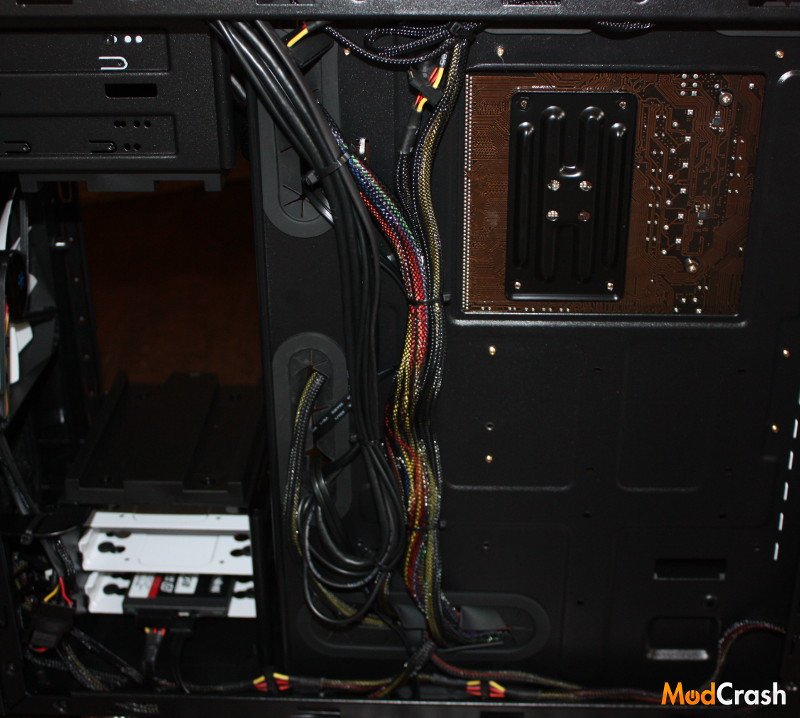
While I changed some things after this once I started testing different coolers on the A10-6800k, this was how I basically kept my cable management. While it isn’t the prettiest job in the world I think I managed to keep everything nice and neat.
AMD Test Drive Build
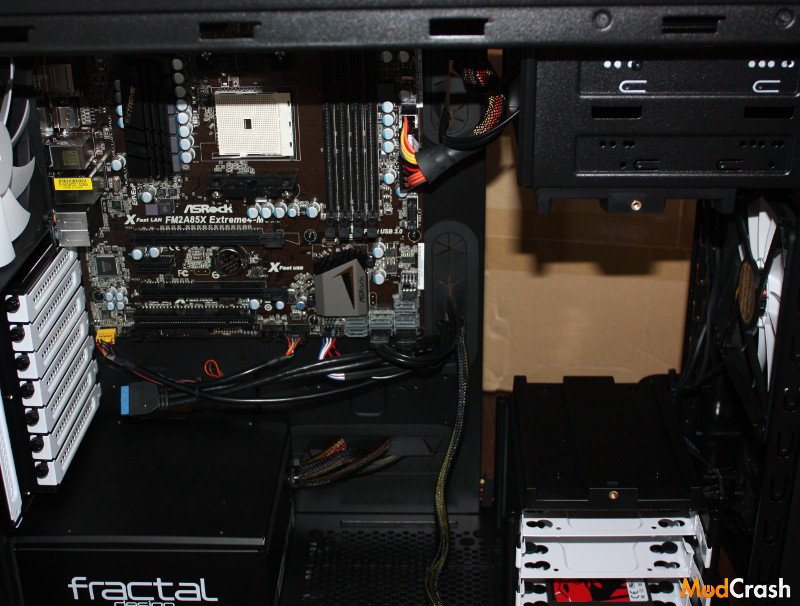
The inside of the case. I hadn’t installed the CPU cooler yet since I planned on testing different types of coolers.
AMD Test Drive Build
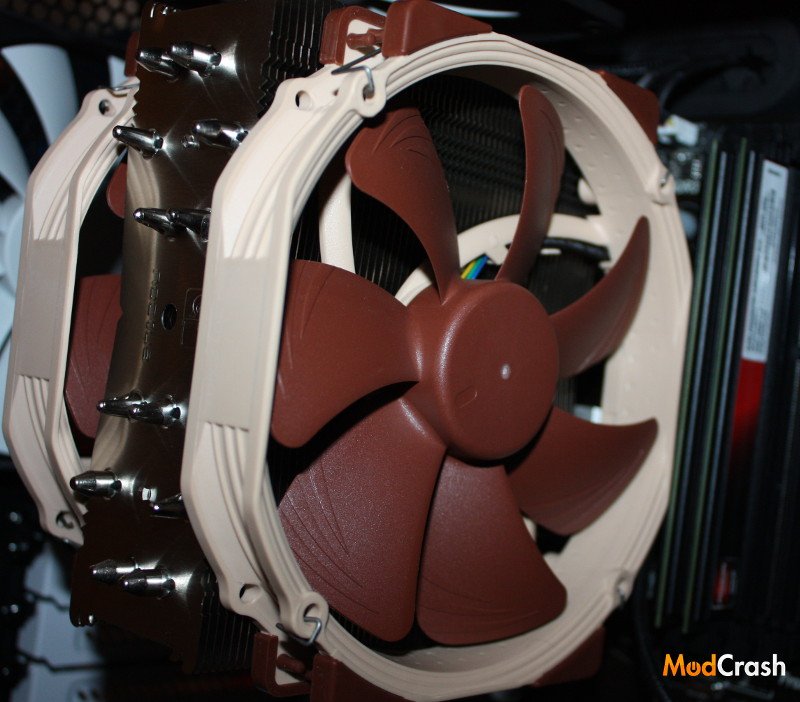
As for the CPU cooler, instead of using the stock HSF cooler AMD supplied, I put a Noctua NH-U14S cooler on it to run some test.
Noctua NH-U14S CPU Cooler
Check out some of the benchmarks for the AMD Test Drive System on the next page!