
Stream or record HD quality games or video at 1080p60 with the Elgato HD60 Pro Capture Card.
Now I know the Elgato HD60 Pro has been out for a while now but I felt I needed to do a review on it as well as include a tutorial to achieve the best stream possible in OBS, Streamlabs OBS, and the Elgato Game Capture software. I had spent many hours configuring and troubleshooting settings just so I can pass on how to do this. Even though there are several tutorials out there, none are really definitive and users have to search around and piece together how to configure the Elgato HD60 Pro.
Elgato HD60 Pro Overview
The Elgato HD60 Pro is a PCI-e capture card that is used for PC streaming. You can use this for a dedicated streaming PC which will allow you to get the best performance possible over a single streaming PC setup. The Elgato HD60 Pro provides dedicated encoding taking the stress off the CPU allowing for ultra-low latency. This means you will have smooth, high-quality output video that your audience will appreciate. While streaming though, you are still limited to your internet connection as well as the mercy of the streaming platforms you are using.
When it comes to recording, the onboard H.264 encoder enables you to capture endless footage in 1080p60. You can push up to a 60Mbps bitrate which means if your computer can handle it, you could record studio quality video. Now your viewers will come back for more knowing that you care about what they watch. You’re not uploading laggy, blocky video but HD and that’s what people want to watch.
Elgato HD60 Pro Packaging
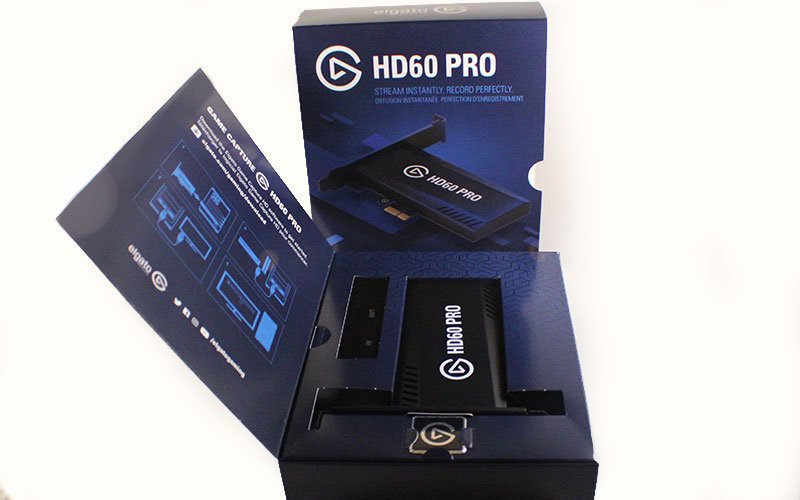
Elgato HD60 Pro Packaging ModCrashThe Elgato HD60 Pro is boxed pretty well. Just like the Elgato Stream Deck, the box is very sturdy. This keeps the HD60 Pro safe during shipping. The product box has an outer box sleeve which keeps it extra protected. Inside the box, you have the Elgato HD60 Pro, An HDMI cable and a low profile bracket that you can switch out if you have a small form factor case. Also included is a case badge you could attach to your streaming PC to show you are rocking Elgato hardware. The instructions for installation and setup are located on the fold-out cover of the product box.
Elgato HD60 Pro design
The Elgato HD60 Pro design is very sleek and thin. Again, if you have a small form factor PC, this is perfect for you. Unlike some other cards out there, you won’t run into any installation issues based on your PC case. There is a covering over the entire card protecting all the chips, capacitors and other components making this addition to your case appealing to the eye. So if you like to show off the inside of your PC, you won’t have an ugly piece of hardware staring you down.
Elgato HD60 Pro Performance
For streaming, you can opt for 1080p60, 1080p30, 1280p60 or 1280p30. These are the most common settings that streamers use. Luckily, you are not limited to just those presets. If you are using software like OBS, you can downscale to a custom resolution that will allow for the highest quality stream your computer can handle. Keep in mind, even though the HD60 Pro handles video encoding, the output depends heavily on your hardware. If you have a high-end gaming PC, then try 1080p60. If you find this is a little too demanding of your PC, tune it down a little until you find the sweet spot. For most, the sweet spot is 1280p60.
If you are using a dedicated streaming PC you can push the stream quality up much higher. That is because the PC is only streaming and not running any other processor intensive apps like your favorite game. Just remember, if you are building a dedicated streaming PC, put your more powerful processor in that rig. This way you can stream at higher quality.
When it comes to recording, you can try for the highest settings possible. This is because you don’t have outside limitations as mentioned before. Twitch limits bitrate to 6000. Even if your internet speed can handle that bitrate, it doesn’t mean your audience has internet that good so they are left buffering. When recording, you can set the bitrate as high as your PC likes and then just worry about video file sizes. With no internet affecting your bitrate, you are in total control of the overall quality of your video. For that, Elgato has given a perfect capture card for streamers that are just starting to big name streamers that stream for a living.
Elgato HD60 Pro Conclusion
Overall, the HD60 Pro is a great capture card for both, streaming and recording. If you are using a single gaming PC this might not be the card for you. Even though it handles video encoding it’s a bit pricey compared to its sister product the Elgato HD60s which is an external capture card. However, if you are planning to add a dedicated streaming PC later, then go for it. You could use it in your gaming PC and when you have your streaming PC you can just swap it over.
Installation and setup are pretty straightforward. If you are using the provided Elgato Game Capture software, it helps to take a lot of the setup process out. When using with OBS, Streamlabs OBS or whatever your capture software choice is, the setup can get pretty tricky. You could spend hours getting your settings just right. I plan to put together a setup video which would cover a single pc, dedicated streaming pc and capture software to help take out most of the settings guesswork.


-

- Elgato HD60 Pro Packaging ModCrash

Elgato HD60 Pro

Likes
- Clean Desgin
- Streaming up to 1080p60
- Included Elgato Game Capture Software
- Easy installation for one or two PC setup
Dislikes
- If using the HDMI passtrhough, there is a slight delay.