
If you find you are running out of storage space on your SSD these few tweaks can help save space.
With SSD’s being so cheap these days it’s easy to grab a 1TB SSD for very little. The problem is, even though the SSDs are getting bigger, so are the game and app program sizes. Its easy for a game to fill 100GB of space on our brand spanking new SSD. One thing we can do is get a secondary hard drive for storage. That is a great solution but still, there’s the problem of our main SSD losing storage space.
I am going to show you a few tweaks that you can use to reclaim some of that stolen storage space.
Save SSD Storage Space by Relocating Your User files
This is probably one of the best storage saving tweaks you can do. Windows automatically saves your user files in your C: drive. When you have a larger storage drive, this generally isn’t an issue. But today with cell phone videos being 4k, super megapixel photos and large game sizes, this can become a problem very quickly. Your user files contain Downloads, Pictures, Videos, Music and more. What we can do is move these files to our secondary hard drive and reclaim all the space they are taking up on our SSD.
- Create a new folder on your storage drive. To keep things simple I named mine my username (f1ss1on).
- Next, open This PC and you should have your main files like Desktop, Documents, Downloads, Music, Pictures, and Videos there.
- Right-click the folder you want to move. In this example, I am moving My Pictures folder.
- Click the Location Tab

- Now select move
- Navigate to your storage drive where you created the folder in and right click, create a new folder and name it Pictures or whatever folder you are moving and select that folder.
- Click Apply
- Once you do that Windows will ask you if you want to move all the files from the old location to the new location. Select yes.
- Repeat this for all your other user folders naming each one to match your Documents, Pictures, Videos, etc.
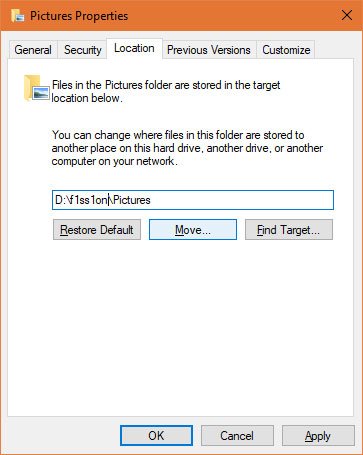
Now all of your user files have been moved from your C: drive to your storage drive. Any new pictures you add will automatically be saved there unless you choose a different directory while uploading. This will free up a lot of space off your SSD.
Save SSD Storage Space by Changing Your Pagefile
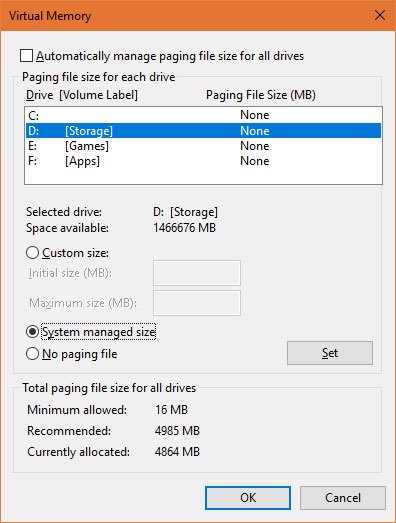
Pagefile is how Windows virtually helps memory usage. The problem is, the more RAM you have, the more space Windows takes up in storage space. The bigger problem is, this takes up space from your C: drive. If you have 64GB of RAM, Windows is using 64GB of storage space. Actually, Windows is stealing 64GB of space from your SSD. You would figure after all these years Microsoft would have got this right by now but unfortunately, they haven’t. Lucky for us, I have a solution for you!
- Type in Control Panel in Start
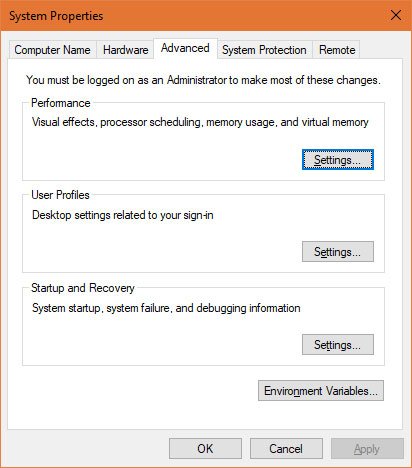
- Navigate to System and in the then open Advanced system settings
- Under Performance click the Settings button.
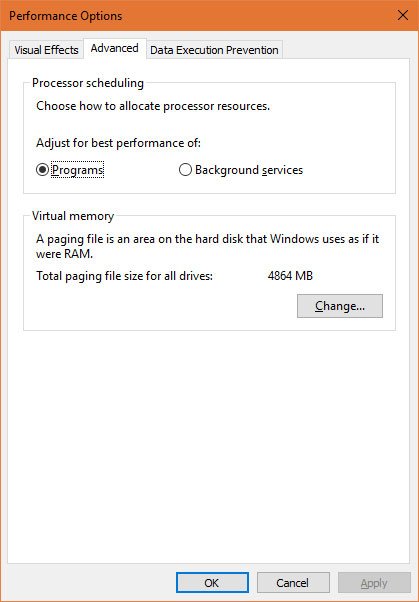
- Next, in Performance Options select the Advanced tab.
- Now you will select the Change button under Virtual memory.
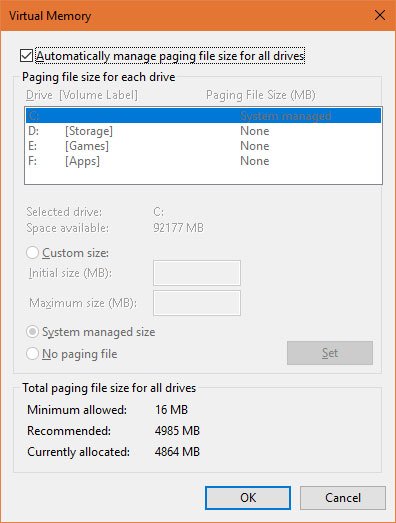
- Click the Change button
- Uncheck the box that says Automatically manage paging file size for all drives.
- With the auto-manage paging file unchecked, highlight C. You will have an option become available to select No paging file. Select that.
- Now highlight D: and check System managed size and click set.
- Click ok and then reboot your PC for changes to take effect.
Save SSD Storage Space by Disabling System Hibernation
Hibernation is a useful feature for laptops and mobile devices. If you’re on a desktop though, it can be disabled to save a ton of space on your SSD. To do this it is pretty simple.
- Type in CMD in the start search.
- Right click the command prompt and select Run as Administrator.
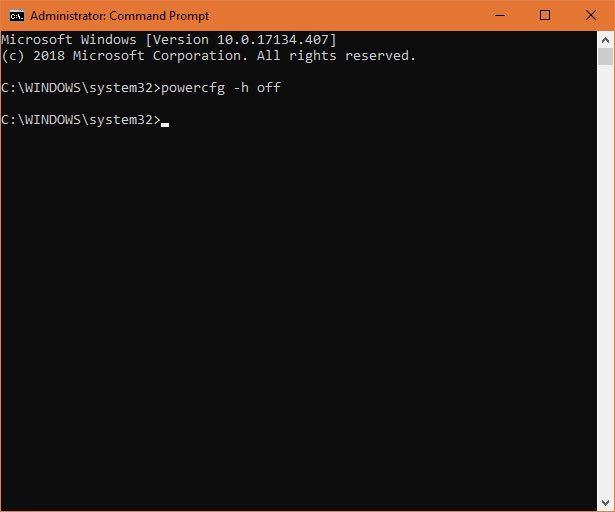
- When the command prompt is open type “powercfg -h off” (without the quotes).
- Now with Hibernation off, you should have reclaimed at least 10GB of space from your SSD.
- To reenable Hibernation simply follow the steps to open the command prompt and type powercfg -h on
Save SSD Storage Space by using Steam Mover
The biggest culprit that takes up storage space on our SSD’s is mostly games. For most game services like Steam, Origin, and others, we have the option of where we want to install the games. That’s a good feature but let’s face it. We want our games on the fastest drive possible to reduce load times and give us more game time. There is a perfect solution for Steam to resolve this dilemma. It’s called Steam Mover.
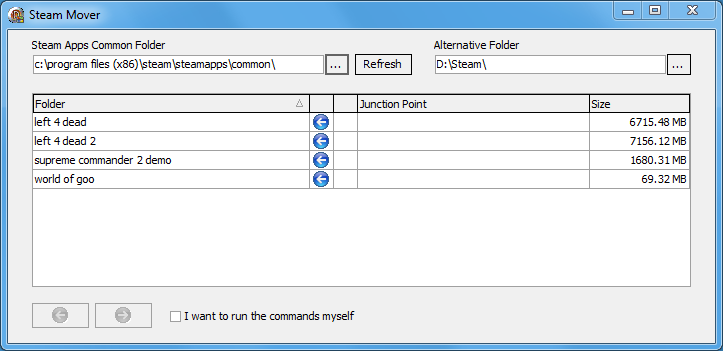
Steam Mover is a 3rd party application that allows you to move your Steam Games locations on the fly without having to install, uninstall or reinstall your games.
How it works is you install your games normally how you would. I suggest you do this on your storage drive. Then, whenever you want to play the game, you will tell Steam Mover to move the location of the game to your chosen location on your SSD. A couple minutes later, your game is on the SSD and you are loading at lightspeed.
With this expert guide, you should have freed up to 50% of space on your SSD. Now you have more space to install your favorite games and applications on your SSD.
Do you know of any other ways of saving storage space? If so, let us know by commenting below.