
Leak test your PC water cooling kit and avoid possible disaster.
Step 3: Flush your water cooling radiator
Flushing your PC radiator removes any debris left over from machining. Believe it or not, even the smallest amount of dirt can affect the performance of your water cooling loop. Flushing it only takes a couple of minutes and saves tweaking time later on.
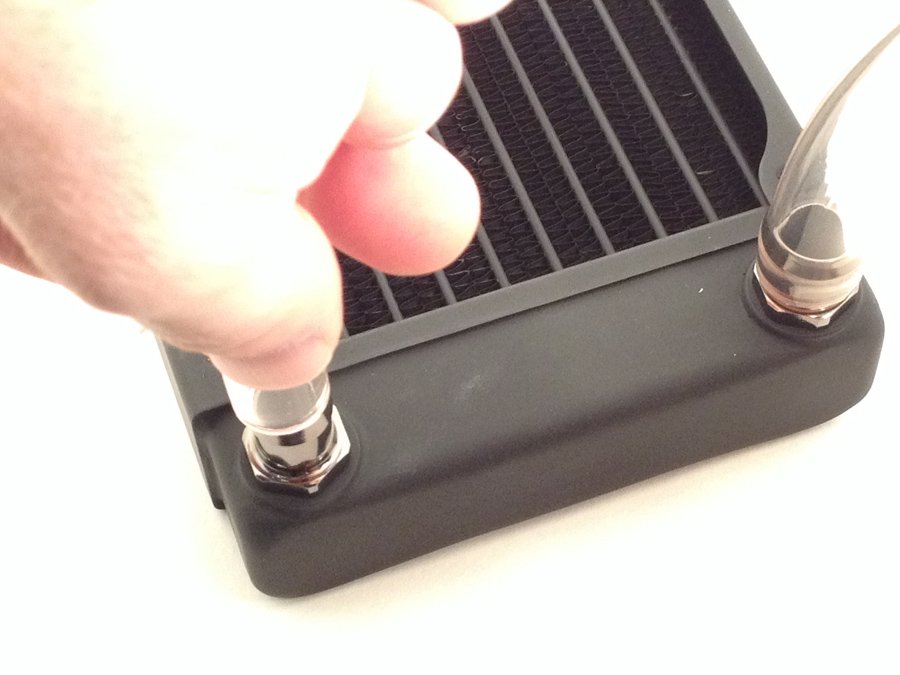
Connecting radiator tubing
To flush your radiator, connect the in / out ports of your radiator with the tubing you just cut. Once you do that, get a bowl and put one of the tubes inside of it. Pour Distilled water down the other tube carefully. You can use a funnel
 to help avoiding a mess, but make sure that funnel has only had distilled water in it and nothing else before. Next, with the radiator filled blow into the tube that you poured the water into. The other tube will output the water and fill the bowl. Do this a couple of times, and then look into your bowl. You will probably seem some debris floating around inside.
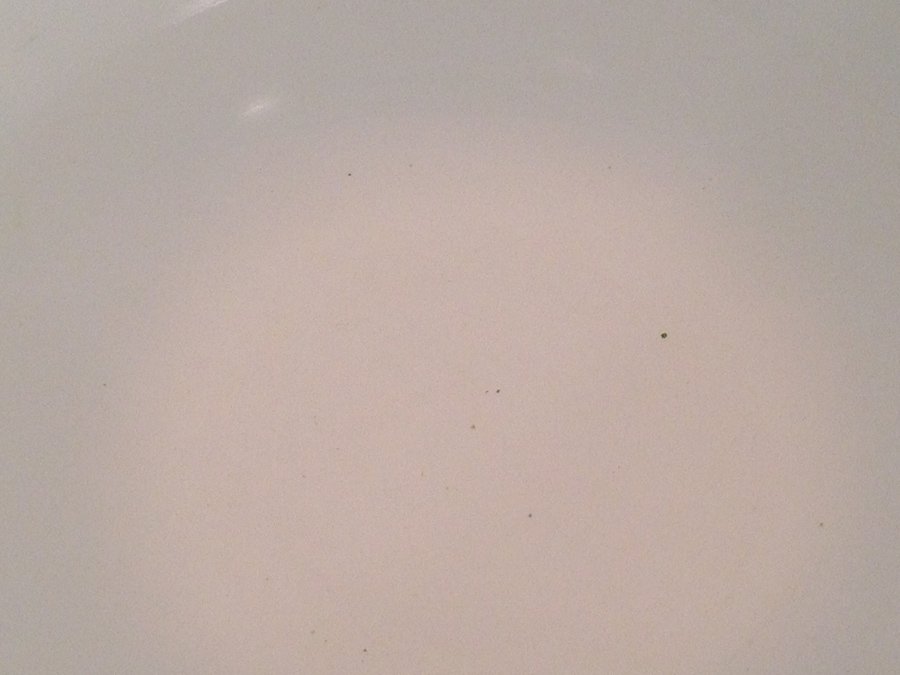
Debris in Bowl after flushing radiator
*The reason for using distilled water is to avoid any impurities that other waters or liquids have that can hurt your loop.