
Hey everyone. Omning here to review Logitech’s entry into the growing Mechanical Gaming Keyboard market, the Logitech G710+.
It’s no secret that I’m a fan of Logitech periphrels- if you could see me right now I’m adorned with a pair of G930’s and using a G700 mouse. If you could see my wife’s Battlestation, it’s even more ridiculous! So when the opportunity of both giving away and reviewing a G710+ Came up, I was to say the least, interested.
Backstory:
I’ve been using a Razer BlackWidow Ultimate (Original) now for over 2 years. I installed a set of O-Ring silencers on it just over a year ago (link for prosperity) due to the incredibly loud plastic-on-plastic “CLACK” that the BlackWidow Ultimate makes when the key is fully pressed into the base. It’s possible to float above and only press down to where the key actuates through the switch rather then bottoming out every time, and indeed I do that pretty regularly when I’m typing. But when I’m gaming, that key needs to be pressed, with the power and might of Thor’s Hammer Mjolnir. It’s impossible to float-type when your toon or team is depending on you! The dampeners went a log way in preventing the incredible CLACK (that even my Guild mates would complain about over Mumble/Vent) but the Cherry MX Blue’s still have a very audible noise.
Enter the Logitech G710+, making use of the much quieter Cherry MX Brown switches. The Logitech G710+ is the first time I’ve had the chance to use a keyboard making use of the Cherry MX Brown’s and I’m fairly impressed with their noise level. It’s honestly not really louder then a standard mushy membrane keyboard. And to my surprise, Logitech thought ahead to the Thor Fingers, and pre-installed tiny O-ring dampeners on each of the keys! All in all it makes for a pretty quiet experience which, if you share an office or are into 3am raiding/death matches, the rest of the family will appreciate for sure.
Logitech G710+ Software:
The software is the typical Logitech Gaming software. If you use any of their peripherals the chances are that you already have it installed and won’t need to install it for the G710+. It offers the same functions as it does on any other device that has G keys, that is the option to program them for macros and the like. I won’t go too deep into the software, because, afterall, it’s a mechanical keyboard and I bet that’s what you’re here to hear about 🙂
Logitech G710+ Hardware Features:
The W, A, S, D and arrow keys are a different color then the rest of the keys which is a nice touch. I think, if I owned one of these for the long term, I might swap them out for something textured just for quicker acquisition, not that my hands don’t naturally fall onto WASD anyway, but I think it’d be cool regardless 🙂
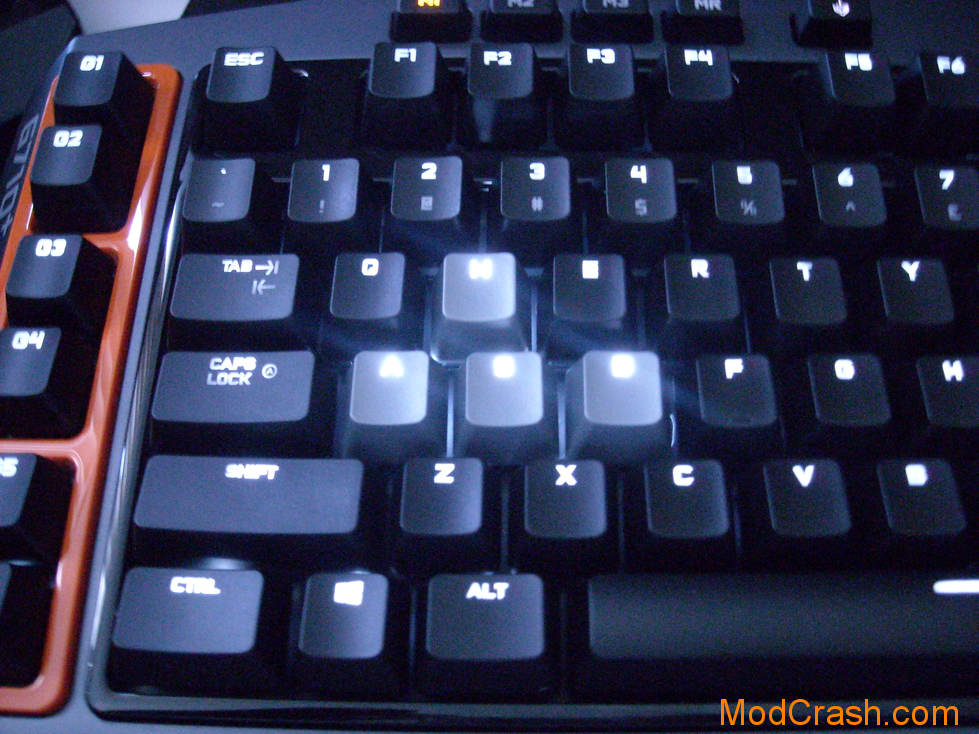
Logitech G710 Keys
Like most gaming keyboards the Logitech G710+ features a “gaming mode”, represented on the G710+ by a Joystick button just above the F5 key. Pressing this disables the Windows button and turns on an LED next to the Scroll Lock/Caps Lock/Num Lock lights indicating that Gaming mode is active. I’m sure some people find this useful, and indeed my Black Widow Ultimate also features the same deal (though to Logitech’s credit, the G710’s activation is much, much easier!) however, I find myself forgetting to use this feature 100% of the time. I can’t say I’ve accidentally hit the Windows Key in years. When Co-Oping with friends and family in Diablo 3, there were several deaths blamed on the Windows key however, so I know it’s something that still plagues the world. It works perfectly, and has a very noticeable feedback for when it’s on or off.

Logitech G710+ Gaming Mode Key
The back-light on the Logitech G710+ is very, very nice. It’s white light, each key independently lit by an LED on the switch itself. The controls for bright night are just above the F11 and F12 keys, and offer independent control over the WASD/Arrow keys and the rest of the keyboard. If you hit the WASD back-light key it only controls the back-light for those 8 keys There are 4 levels of brightness from barely-on to can-see-in-broad-daylight as well as completely off. It’s a very well thought out and appreciated feature that you can turn off the rest of the back-lights and keep the WASD on, or keep the rest of the keys dim and the WASD full bright. I’m sure there’s some ESDF die-hards out there that will wish they could customize which lights were lit, perhaps through the software, but I’m sure most of the world will be happy with WASD as it is now.
Logitech G710 Keys
The Logitech G710+ also features Media Keys for controlling Audio or what-have-you through the keyboard. While writing this review I’ve made pretty extensive use of this feature, pausing, starting, skipping and using volume controls for Spotify. The volume roller (Same type as the G930 headset) is just above the keypad, and next to it is the mute key. The control keys are above the Print Screen/Scroll Lock/Pause Break keys. One very tiny nitpick is that I personally think the keys are out of order. On the G710+ it goes Play/Pause, Stop, Back, Forward. In Spotify, Windows Media Player and Apple iTunes, Play/Pause is always in between the forward and back buttons, and I’m programmed to assume that’s how the buttons should be laid out. At any rate it didn’t take me long to get used to it, and it’s worth it to point out that on Windows 7 this required absolutely no setup at all and worked out of the box.
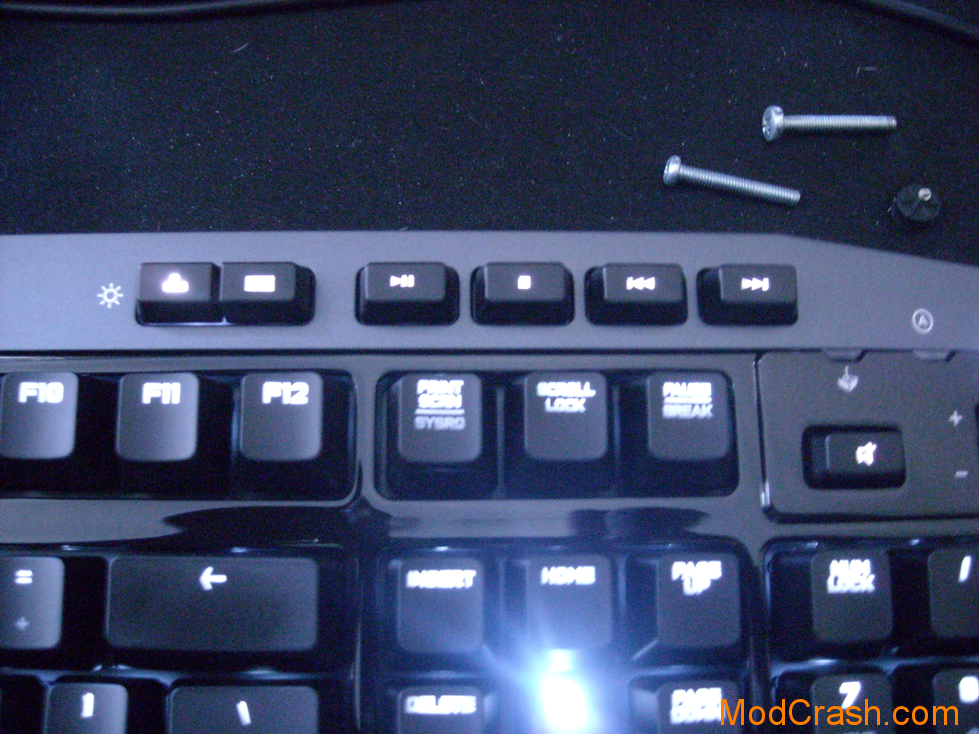
Logitech G710+ Media Keys
Also included with the Logitech G710+ is a plastic palm rest. It installs like any other and makes typing pretty comfortable! I would prefer a padded option rather then the typical hard plastic, especially at gaming-keyboard prices, but overall as far as stock palm rests go it’s fine. You may notice a small gap in the palm rest. If you flip over the keyboard you’ll see that it aligns with a channel in bottom of the keyboard. This is for running a cable underneath the keyboard without unbalancing it- a very, very nice touch that works perfectly for those running a wired headset. GG, Logitech!
To go with that, the overall build quality great, with no flexing, a decent weight behind it, and nice finishes all around. The color combination is conveniently ModCrash-esque,with grays and blacks accented with the orange surrounding the G-Keys. The cable is quite thick and standard rubber shielding rather then sleeved like some other options out on the market provide. At the end are two USB plugs that are ModCrash orange as well. The second USB plug is for USB 2.0 pass-through which I can also say functions without issue out of the box, as I plugged my printer into it and gave it a go with no problems.
Now, onto thge part that you’re all interested in. You’ve suffered through all of my thoughts and ramblings about lights, software, colors etc etc etc and just want me to get to the point- how does it type!? Omning, how does this gaming keyboard PERFORM?
Logitech G710+ Performance and Conclusion:
Well, and this is purely subjective, I just don’t think I like Cherry MX Brown’s that much. It’s an experience that is miles ahead of typing on a membrane keyboard like a G15 or G510, but if you’re at all used to Cherry MX Blue’s, and their inherent very tactile feel/click, the Brown’s will feel off. I can’t quite put my finger (lol?) on it, but it’s just different enough to drive me slightly crazier then I already am, and cause me to mistype more words then usual. I think part of it is the movement of the keys when you press down on them. There is a tiny bit of space you have to press down on before you get to the switch, and at that point the press changes in the amount of force that is needed, but only slightly, and then once engaged the switch doesn’t have the loud or even tactile reinforcement through the finger to let you know that it’s been pressed. This causes the key presses to feel like there’s a “bump” in the middle of the press. My BlackWidow Ultimate has the same small gap at the start of the key press, but the Cherry MX Blue’s have such a loud, powerful tactile feedback that it feels better when typing.
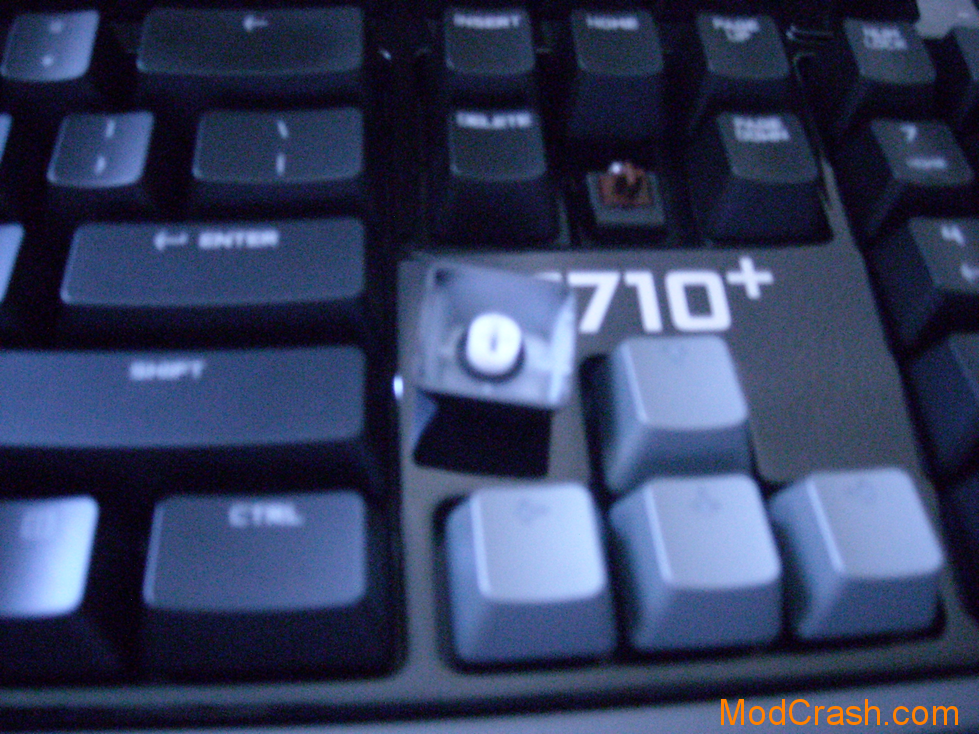
Logitech G710+ Keys come pre-installed with rubber oring dampeners
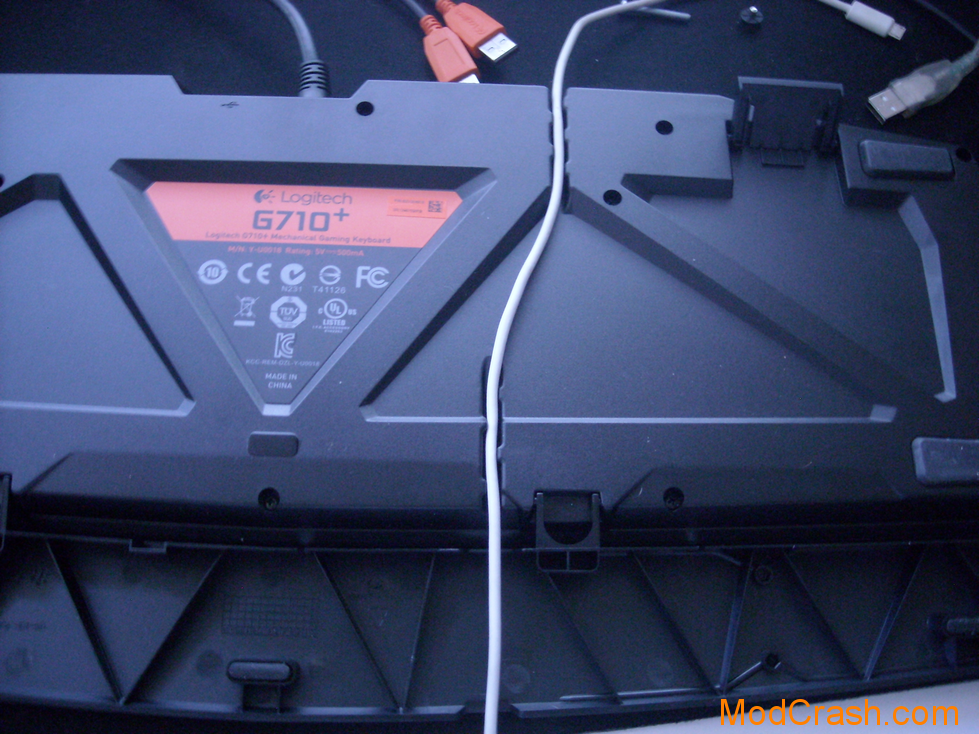
Logitech G710+ Has a cable channel on the bottom for running cables.
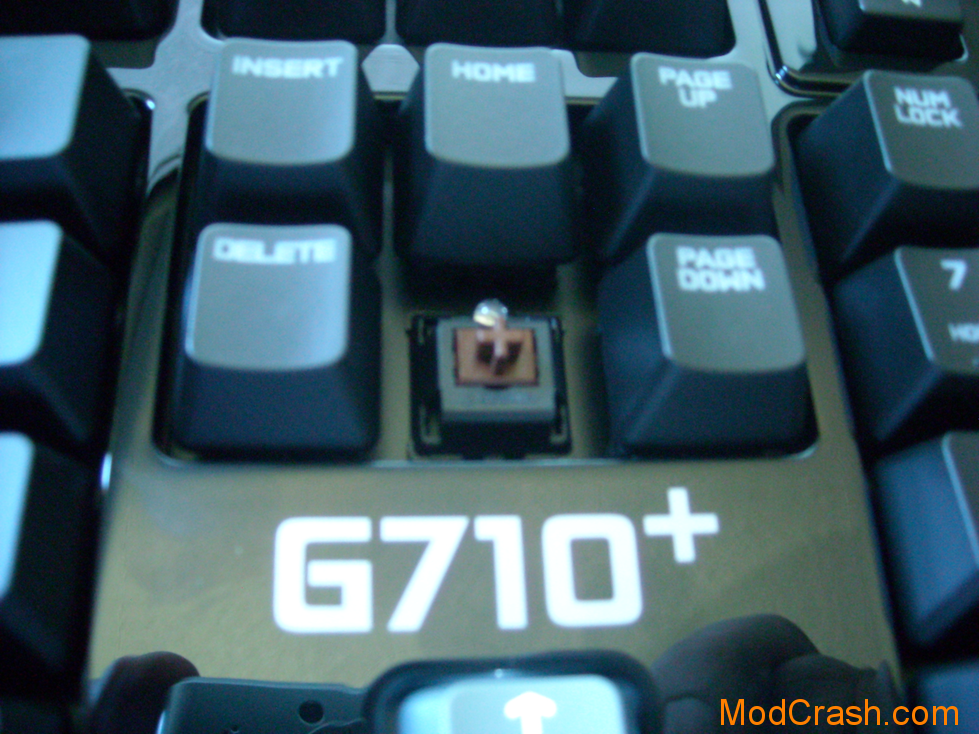
Logitech G710’s Cherry MX Browns on display with the LED backlight
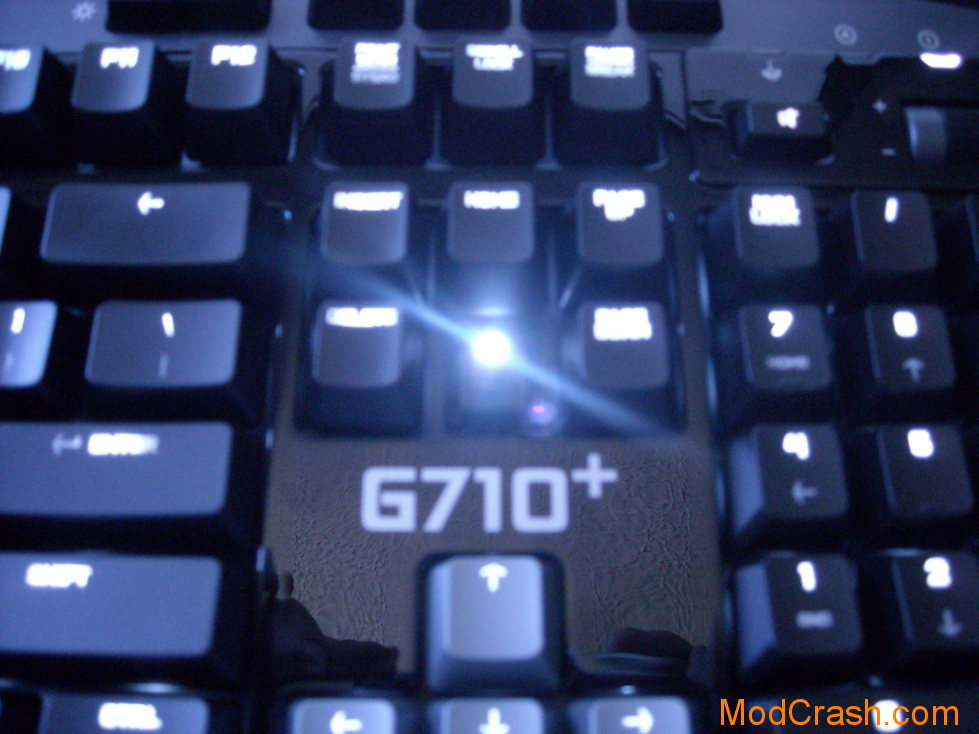
Logitech G710 LED Backlight is quite bright
I honestly prefer everything about the Logitech G710 over my BlackWidow Ultimate, except for the switches. I do like that they’re much, much, holy crap so much quieter then my cherrished MX Blues, but all the great features and options in the world don’t make up for typing experience in my personal opinion. I would, without hestiation, recommend the Logitech G710+ to anyone who might game or type regularly in a common space in a house or office, or for the first-time mechanical user, I think it’s a great introduction to the mechanical keyboard when coming from the world of rubber dome membrane keyboards, but once you’ve used the Cadillac of switches (Cherry MX Blues) it’s hard to go back. If it were using the MX Blues and had all the same features that it currently has, I’d throw out every other keyboard I own and swear fealty to it. There is honestly a part of me that wants to take the whole thing apart and see if we can swap out the switches, I like the rest of the keyboard that much, but that just seems silly…
or does it? 🙂 For now it’s time to get this packed up and sent off to to ModCrash reader Gritz!