
Noctua NH-U14S Benchmarks
Test System:
- ProcessorAMD A10-6800K
- MotherboardMSI FM2-A85XMA-E35
- ChipsetAMD A85X
- Memory8GB AMD RP1866 RAM
- Hard Drive
- 60GB Kingston SSDNow V300
- Interface: DVI
Software used for testing:
- HWMonitor (Note: CoreTemp doesn’t recognize temperatures with the A10-6800K)
- Prime95
Using Prime95, we tested both the stock cooler and the Noctua NH-12S under a full load using the “In-place large FFTs” option to maximize heat. Our intent was to show how the Noctua NH-U12S CPU cooler performed on a socket FM2 APU. Keep in mind that temperatures of the AMD A10-6800K can reach up to 120 degrees Celsius before reaching it’s thermal threshold.
Noctua NH-U14S Temperature Benchmarks
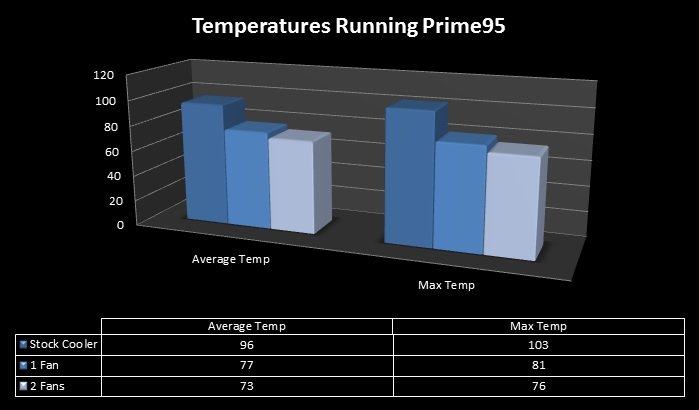
Noctua NH-U14S CPU Cooler Temp Chart
From the chart you can see that the going from a stock cooler to the Noctua NH-U14S with one fan was a huge drop. Going from a max temperature of 103 C to 81 C. While this was expected it was still nice to see such a huge drop in temps after installing this cooler. Average temperatures also took a huge nosedive after installing the Noctua NH-U14S CPU cooler going from the 90s to the 70s running Prime95. I didn’t include idle temps just because it fluctuate so much but I was sitting about 44 C idle.
Now going into a push/pull configuration didn’t show a massive drop but it did drop temps even further. I saw temps going from 81 C to 76 C which is still a good drop for just adding another fan. Overall I was very happy with the performance of the Noctua NH-U14S cooler since it stayed stable and low temps for a APU that has a max thermal temperature of 120 C. This leaves lots of room for overclocking for those wanting to push the AMD A10-6800k, that this cooler was installed onto, to its limits without having to put it under water with a closed or custom loop.
Noctua NH-U14S Sound Benchmarks
Noctua has always made top notch fans and the NF-A15 PWM fan is no different. The sound levels, using one or two fans, weren’t even noticeable. To test the sound levels I installed a NZXT Sentry Mix 2 fan controller so I could change fan speeds and also I used two different apps on my phone to measure the actual decibel level. At the lowest RPM speed I saw that one fan was making barely 13 dBA and turned all of the way up at 17 dBA. With both fans installed I saw a very small increase to about 15 dBA and 19 dBA which all these numbers are within specs from Noctua. Now to the human ear these are were not audible until I got my ear within a couple of inches. When I put the side panels on I couldn’t hear anything at all.
Noctua NH-U12P Installation
I want to do a down and dirty explanation of how to install this CPU cooler. If you are using an AMD CPU then you will be reusing the backplate that is on the motherboard so do not throw that away and it is as simple and screwing in new brackets to that backplate to make the NH-U14S cooler compatible with your AMD motherboard. If you are using Intel then Noctua has included a new backplate you will be using but in the end it takes less than 5 minutes to switch out brackets and backplate for either AMD or Intel.
When going to mount the heat sink like I mentioned before you will have to keep the fans off since Noctua uses a screw down method for securing the cooler to the motherboard. It isn’t hard to do and I would say from start to finish it takes about 5-10 minutes to install the mounting hardware and the actual cooler. Noctua has also included very detailed instructions on how to install this cooler but if you have every used any of their previous coolers then you should be able to pick it up rather quickly. If you would like to look at the installation procedures than you can look at Noctua’s Installation PDF file for the details.