
Create a Bootable USB and Secure Erase an SSD
The first thing to do is you are going to need a USB drive and software to make it bootable. I personally use PowerISO since you can download a free version that will let you make a bootable USB. The next thing you will need is to go and download Parted Magic.
After downloading PowerISO, here is where you need to go to make your bootable USB drive.
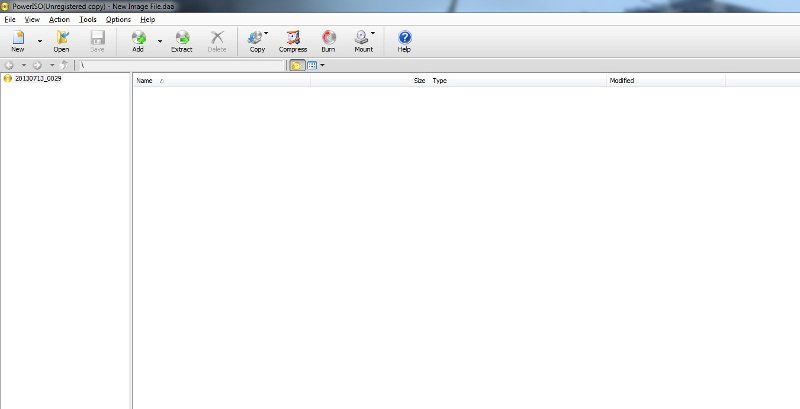
This is what you should see when you open up PowerISO.
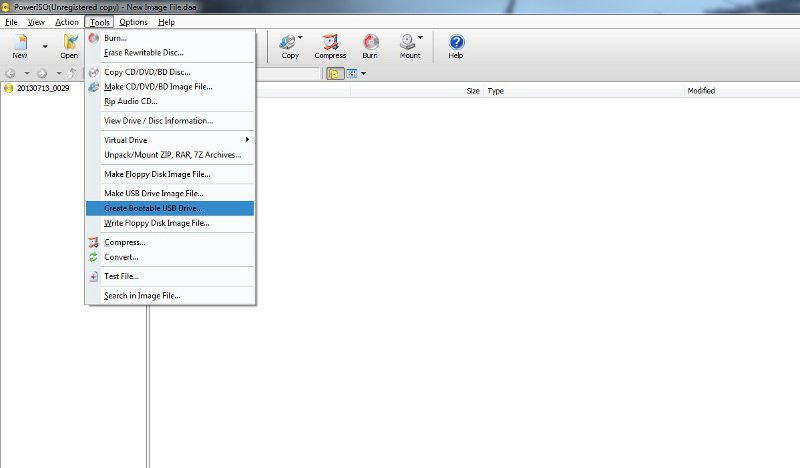
Next is go up to tools and scroll down to “Create Bootable USB Drive”.
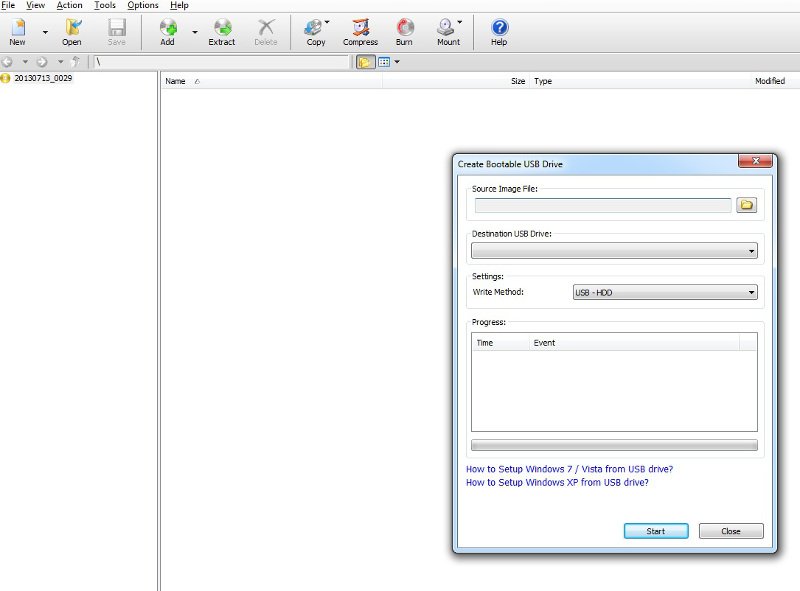
Next you will need to go select where you put your download of Parted Magic for your source and then make sure they USB drive you are using is set for the destination. Write method I just use default at USB – HDD. Afterwards hit start and it will tell you that anything will be deleted off the USB drive and if you want to proceed. After this it will start writing to the USB drive and will let you know when it is done.
Next is actually actually booting up with the USB drive. Once it loads it will being up this screen.
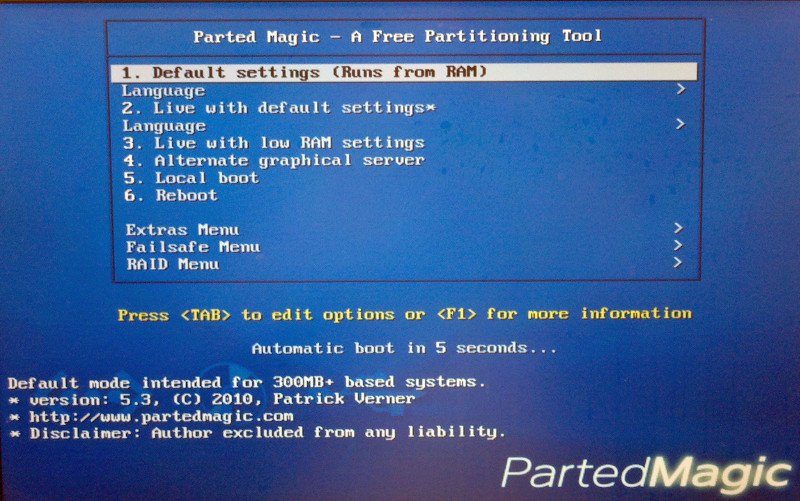
Choose the default first setting and then it will load the OS after a minute or two which will bring up this next screen.
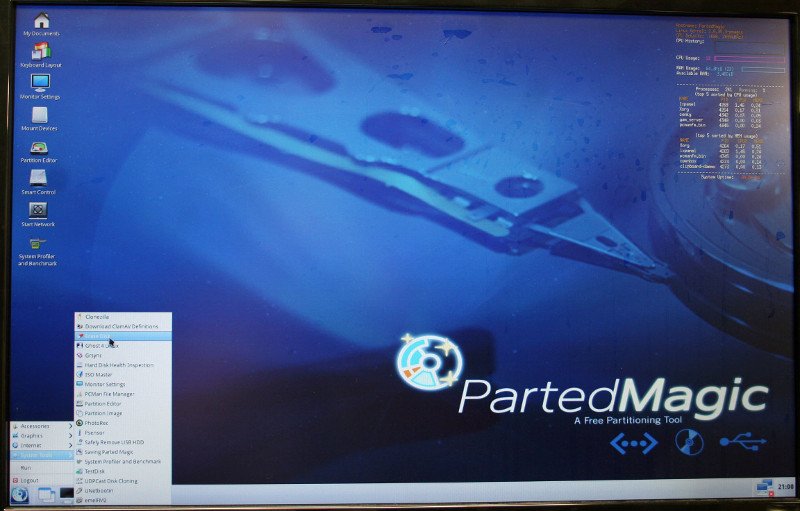
From this screen as you can see you will hit the “start” button, go to system tools, and then at the top hit erase disk. This will then bring up the next menu.
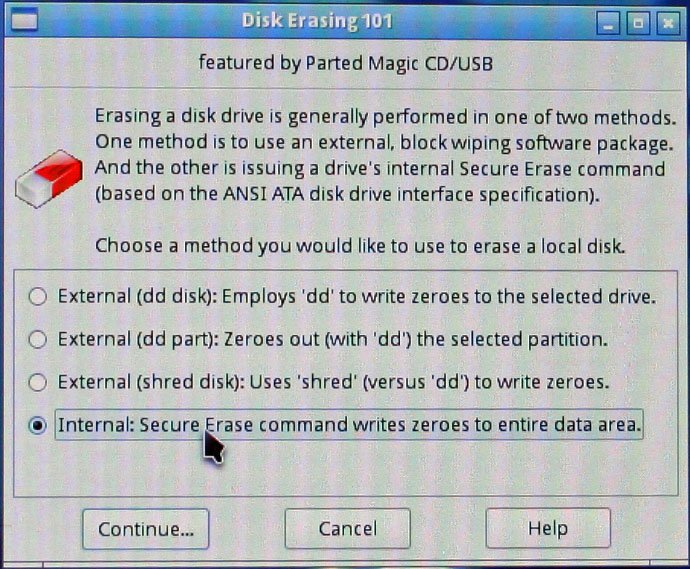
This menu gives you multiple options for erasing your HDD or SSD and for SSDs we want to use the “Internal: Secure Erase Command”. Afterwards hit continue.
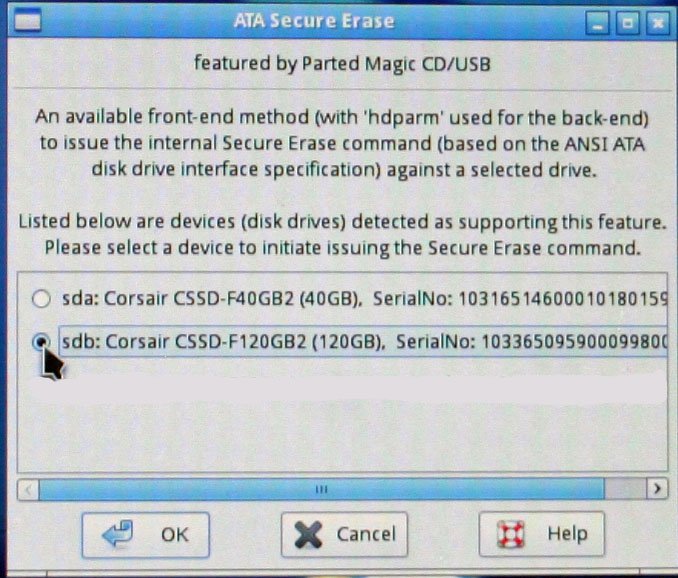
When this screen pops up it will list every HDD or SSD that is detected in your system. Choose your SSD and click ok.
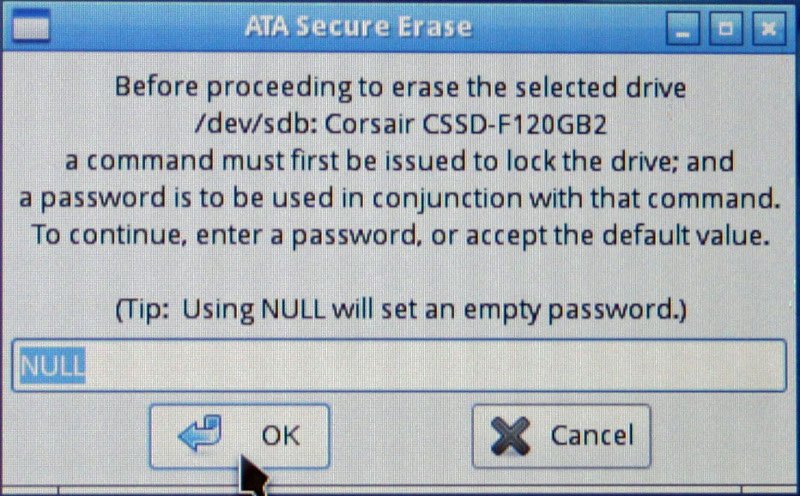
If you want to enter a password to be able to do this at a later date you can but I leave it at NULL so I don’t have to worry about it. Click ok and head on to the next screen.
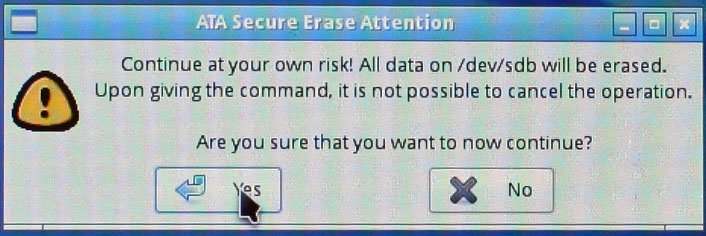
This is the last step before everything is secure erased from your SSD. If you are sure then hit ok and Parted Magic will do its thing and you will have a squeaky clean SSD.
After all of this you just need to load your operating system of choice up and load it as you normally would.
Issues
Having used this software for the past couple years I have encountered very few issues. The most persistent issue I have encountered is that the SSD will be “locked” and Parted Magic will suggest putting your computer to sleep then going though all the step again. While this has worked before I found the best thing to do is boot up into your OS and do a normal full shut down and then start up your computer again. I have seen this issue mainly when I haven’t done a proper shutdown so this could be more user issue than issues with the software.
Using Parted Magic is very easy to use and it does have a lot of other functions but mainly it is a great free tool to use when you need to secure erase an SSD.
Join the Forum discussion on this post